Get your Gemini and OpenAI API keys and run your first fan-out
queryfanout.com is free, but every fan-out is a live call to Gemini and OpenAI, and those calls run on your own API keys so you pay the providers directly for exactly what you use. This walkthrough shows you where to create each key, how to add them to the tool and how to run your first comparison. You can use just one provider if you prefer, but you need both keys to see Gemini and OpenAI side by side.
Before you start
You need a Google account for Gemini and an OpenAI platform account for OpenAI. The OpenAI platform is separate from a ChatGPT subscription: a ChatGPT Plus or Pro plan doesn't include API usage, so you'll add a small amount of prepaid credit there. A typical run costs cents, and the run form shows a projected cost before you start.
Your keys stay in your browser. queryfanout.com saves them locally on the device you enter them on and sends them only with each run; the server uses them for that run and never stores or logs them. Creating a dedicated key just for this tool makes it easy to track spend and to revoke it later without affecting anything else.
Get a Gemini API key
Gemini keys come from Google AI Studio, and the whole process takes about two minutes.
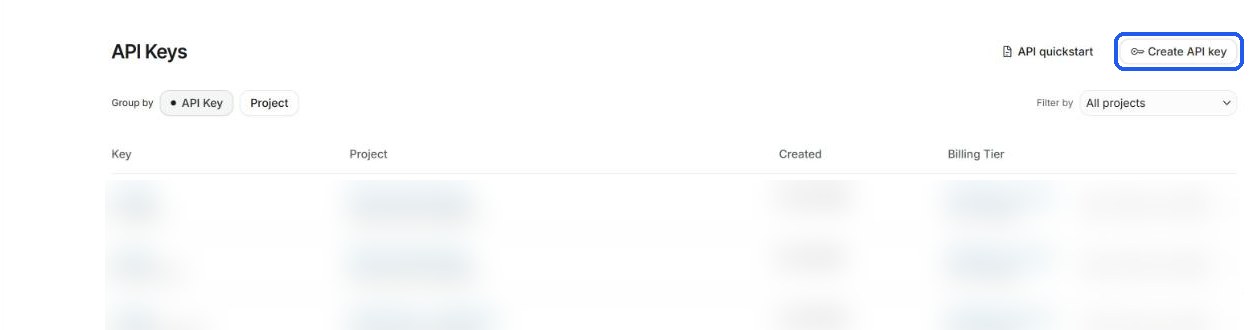
Open the API keys page in Google AI Studio
Go to aistudio.google.com/apikey and sign in with your Google account. If this is your first visit, accept the terms when AI Studio asks. Then click Create API key in the top right corner of the page.
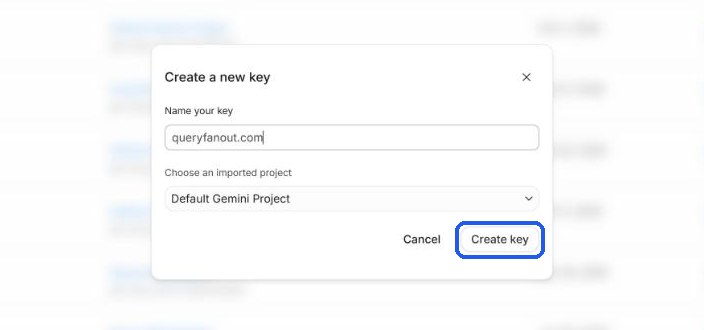
Name the key and pick a project
Give the key a name you'll recognize later, such as queryfanout.com. Under Choose an imported project, the Default Gemini Project is fine; if you'd rather keep this usage separate, open the menu and choose Create project. Click Create key.
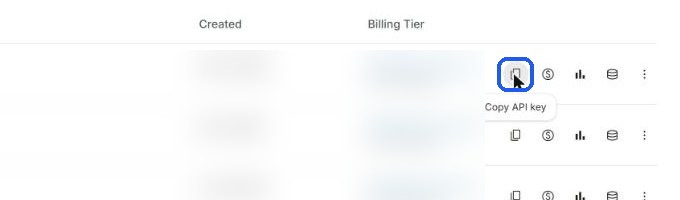
Copy the key
AI Studio shows the new key as soon as it's created. Copy it; Gemini keys start with AIza. Unlike OpenAI, Google lets you come back later and copy the same key again with the copy icon on its row, so there's no need to save it anywhere else.
Get an OpenAI API key
OpenAI keys come from the OpenAI platform dashboard, and API usage is paid for with prepaid credits.
Open the API keys page on the OpenAI platform
Go to platform.openai.com/api-keys and sign in, or create an account if you don't have one. Click Create new secret key in the top right corner.

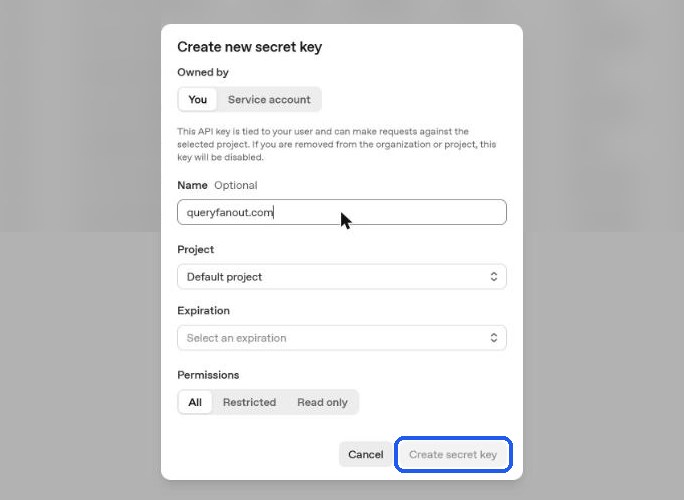
Configure and create the key
Leave Owned by set to You and enter a name such as queryfanout.com. Keep the project on Default project unless you've set up a separate one for this, and leave Permissions on All. Setting an expiration is optional, but if you do, you'll need to replace the key in queryfanout.com when it expires. Click Create secret key.
Copy the key right away
OpenAI shows the full secret key exactly once, in a Save your key dialog. Click Copy and paste it into queryfanout.com (or a password manager) before closing the dialog. OpenAI keys start with sk-, usually sk-proj-. If you close the dialog before copying it, delete that key and create a new one.
Add credits to your account
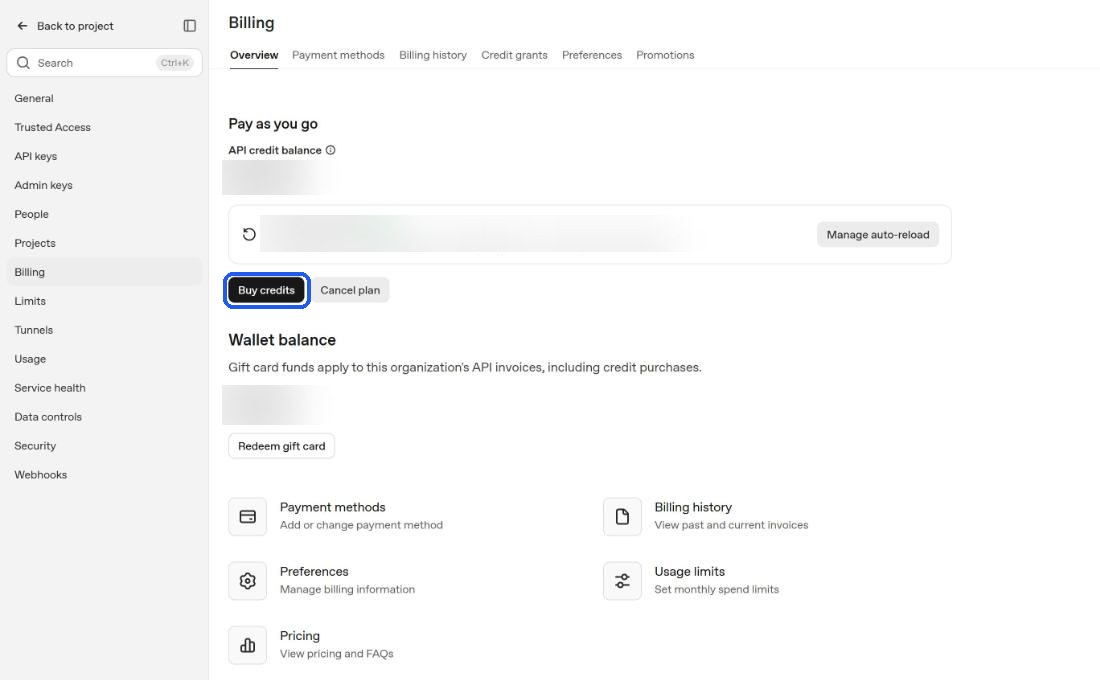
The API won't answer until the organization has a credit balance. Go to Settings → Billing, add a payment method and click Buy credits. The minimum purchase covers a lot of fan-outs. Auto-reload is optional; if you turn it on, it's worth also setting a monthly cap under Usage limits.
Add your keys to queryfanout.com
With both keys copied, you can save them in the tool. You only need to do this once per browser.
Sign in and open Settings
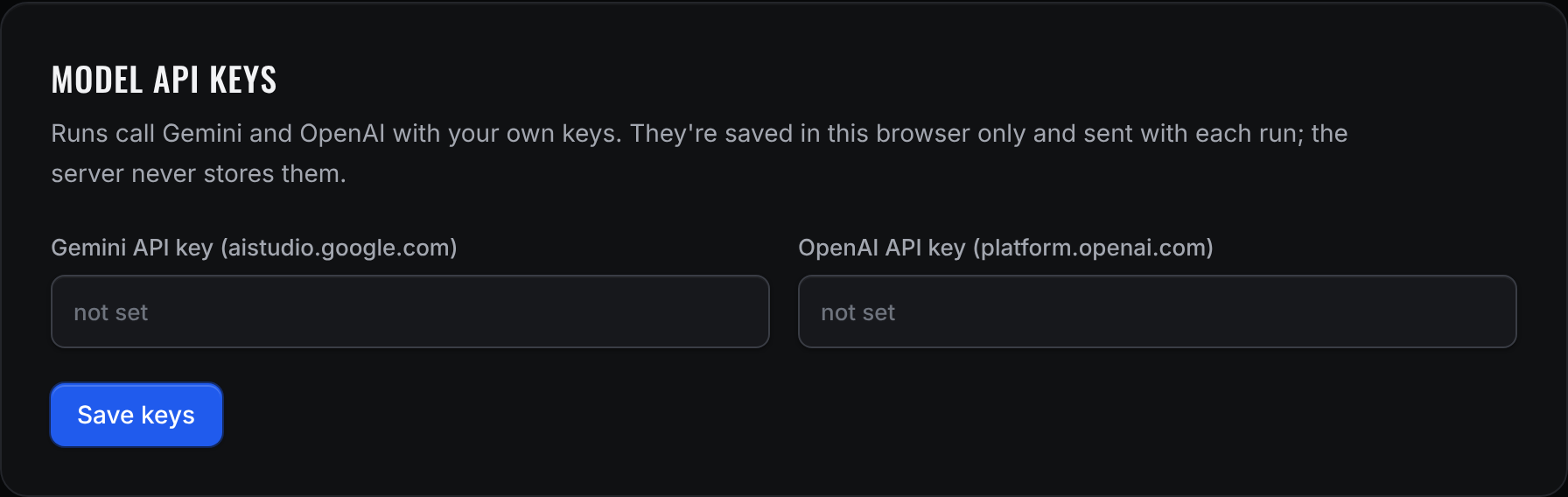
Click Sign in in the top right of queryfanout.com and continue with your Google account, then open Settings from the menu. The Model API keys panel is at the top of the page.
Paste the keys and save
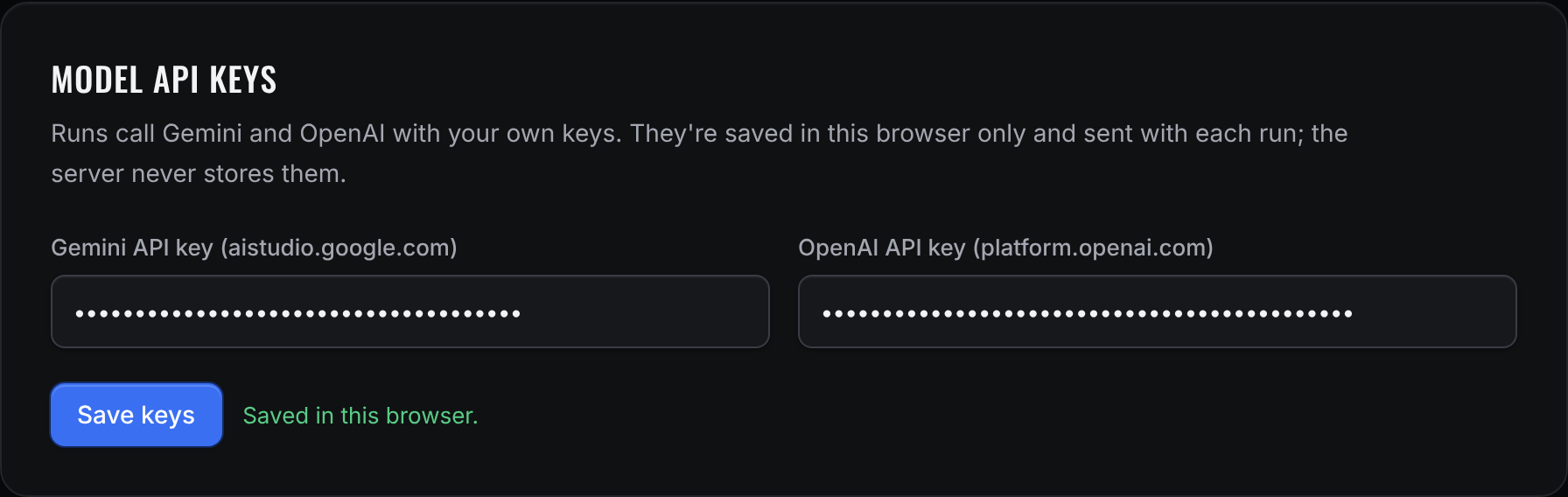
Paste your Gemini key into Gemini API key and your OpenAI key into OpenAI API key, then click Save keys. You'll see Saved in this browser next to the button. The fields are masked, and when you come back later they show only the first and last four characters of each saved key.
Run your first fan-out
Enter a query and choose your models
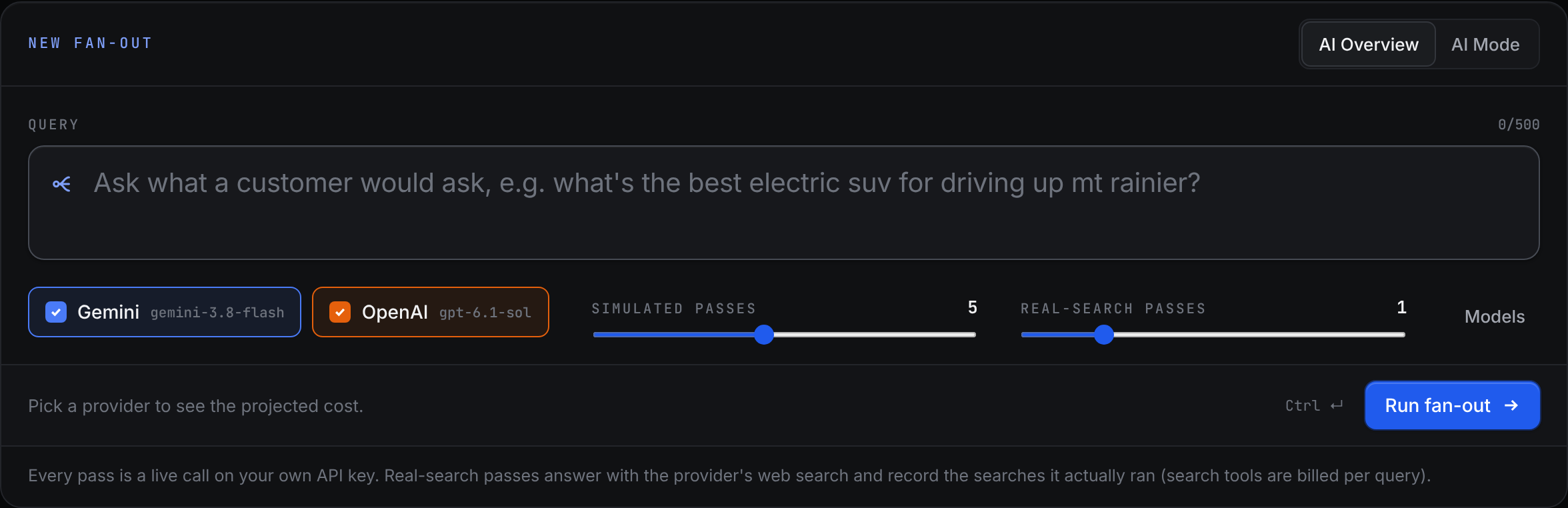
Go back to Run and type the kind of question a customer would ask. Pick AI Overview or AI Mode in the top right, and tick Gemini, OpenAI or both. The sliders set how many simulated passes to run and how many real-search passes, which answer with the provider's own web search and record the searches it actually ran. Once a provider is ticked, the projected cost appears under the query, so you can check it before you start.
Click Run fan-out
Click Run fan-out or press Ctrl ↵. Progress streams in as each pass finishes, and when the run completes you land on its results page with the fan-out tree, the side-by-side comparison of Gemini and OpenAI and the query classes. Every run is also added to the open index, where you can search everyone's fan-outs. If you want help reading the results, the query fan-out guide explains how to turn them into content decisions.
Troubleshooting
If a run won't start or one provider comes back with an error, it's almost always one of these.
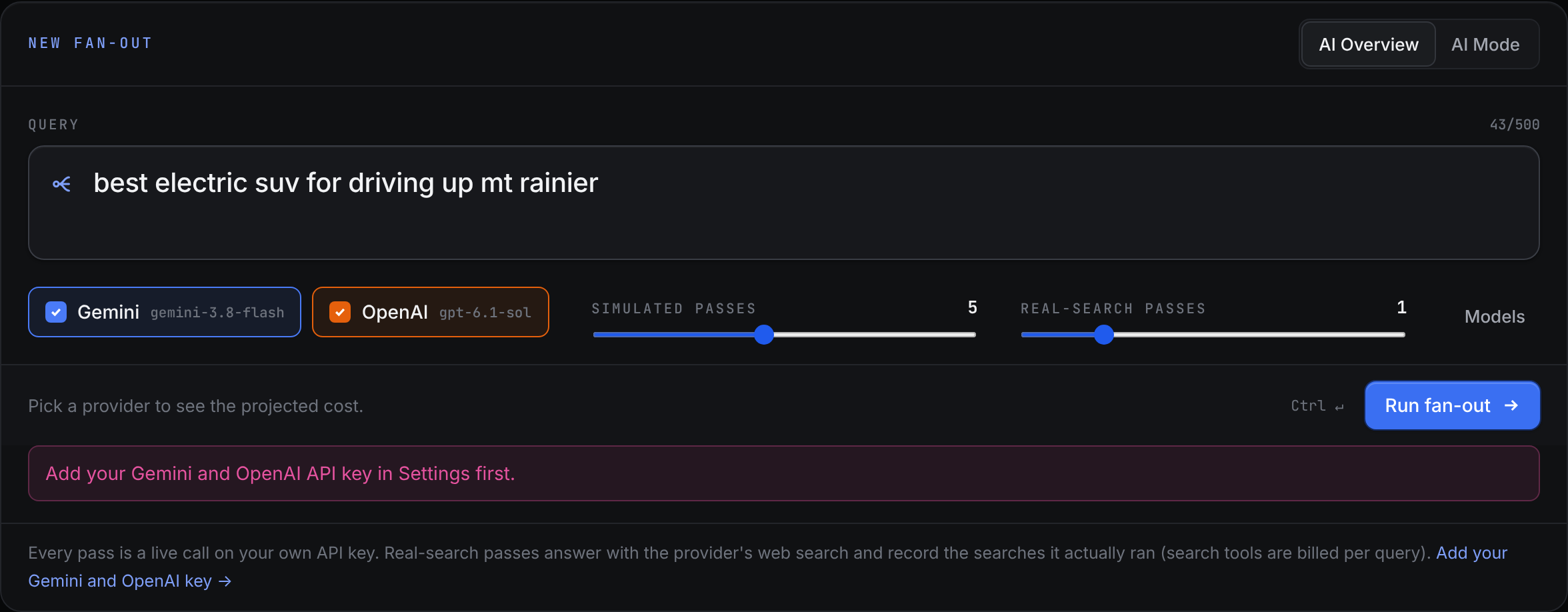
- “Add your Gemini and OpenAI API key in Settings first”
- Keys are saved in the browser you entered them in, so a different browser, a private window or cleared site data means the keys aren't there anymore. Paste them into Settings again and save. If you only want one provider, untick the other one on the run form instead.
- The OpenAI side fails with a quota or 429 error
- Your OpenAI organization is out of prepaid credits, or the key belongs to a project with a spend limit. Add credits under Billing (step 4 of the OpenAI section) or raise the project's limit, then run it again.
- The Gemini side fails with a 429 or rate-limit error
- Free-tier Gemini keys have tight per-minute and per-day limits, and a fan-out with several passes can hit them quickly. Turn on billing for the key's project in AI Studio, or lower the number of passes.
- An “invalid API key” or 401 error
- The key was copied with a missing character or extra space, or it has been deleted. Copy it again (or create a new one), paste it into Settings and save.
- You think a key has leaked
- Delete it on the provider's API keys page and create a new one. Deleting it there stops it working everywhere immediately, including here, so paste the replacement into Settings afterward.
Run a prompt on Gemini and OpenAI side by side and see where they differ.